DStv Catch Up Setup: Complete Technical Guide for 2026
Getting your DStv Catch Up setup configured correctly is one of the most common requests we handle across Gauteng, and here is a key detail that surprises many customers: you can download up to 25 Catch Up shows to your DStv Explora decoder at any one time, making a properly connected and aligned system more important than most people realise. Whether you are setting up Catch Up on a new decoder or troubleshooting an existing configuration, this guide covers every technical step you need.
Key Takeaways
| Question | Answer |
|---|---|
| What do I need for DStv Catch Up setup? | A compatible decoder (Explora or Smart decoder), an active DStv subscription, and a stable internet connection via LAN or Wi-Fi. |
| Is Catch Up available on all DStv packages? | Catch Up is available to all subscribers, though specific channels and content windows depend on your package tier and licensing agreements. |
| Can I set up DStv Catch Up without a technician? | Basic Catch Up activation is possible if your decoder is already connected to the internet, but signal or network issues require a qualified dstv technician. |
| Does DStv Catch Up work on the app? | Yes, the DStv app supports Catch Up streaming and offline downloads on compatible Android and iOS devices. |
| How long is Catch Up content available? | Availability ranges from a few days to several months, depending on the broadcaster's licensing terms for each title. |
| Who do I call for DStv Catch Up setup in Gauteng? | Contact DSTV Pro Installers on 077 454 4032 for same-day service across 28 Gauteng suburbs. |
What Is DStv Catch Up and How Does the Setup Work?
DStv Catch Up is an on-demand content feature that allows subscribers to watch previously broadcast programmes at a time that suits them. The DStv Catch Up setup process links your decoder or app account to MultiChoice's Catch Up servers via an active internet connection.
Catch Up content is stored on DStv's servers and streamed or downloaded to your device on request. This means your decoder must maintain a stable, authenticated internet connection for the feature to function as intended.
Content availability on Catch Up varies by channel and title because each piece of content is governed by separate broadcast licensing terms. A show may only be available for 72 hours after broadcast, while others remain accessible for several months.
Hardware and Network Requirements for DStv Catch Up Setup
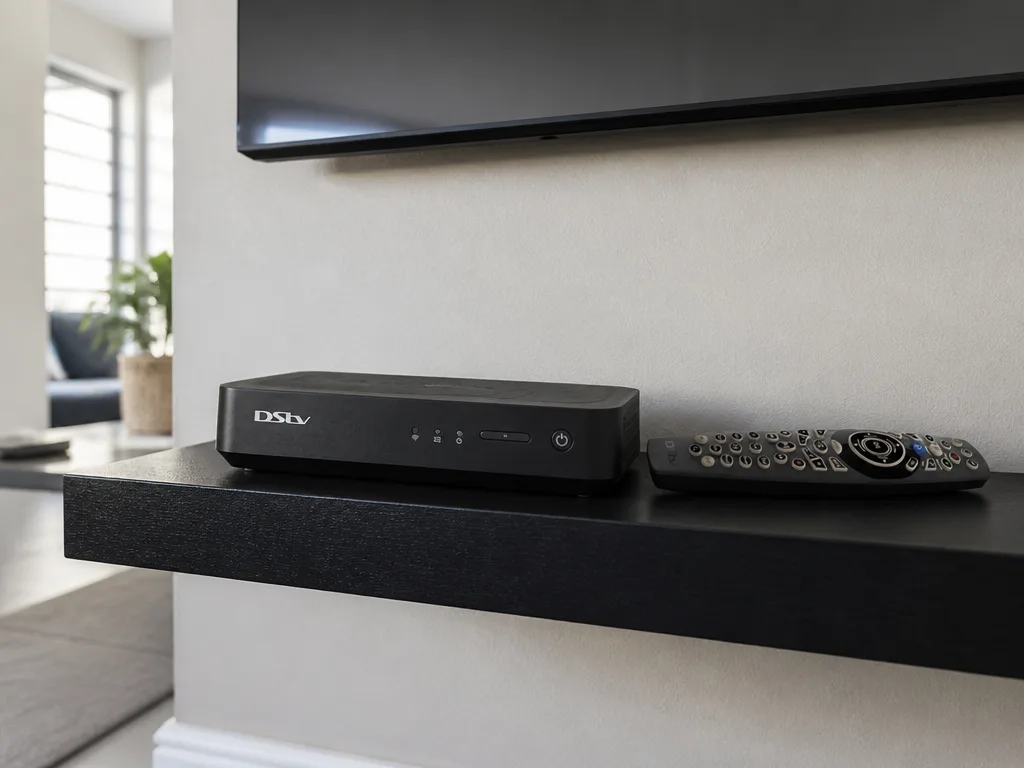
Before beginning any DStv Catch Up setup, you need to confirm that your equipment meets the minimum technical requirements. Compatible decoders include the DStv Explora, Explora Ultra, and DStv Smart decoder range.
Your decoder needs to connect to the internet via a wired LAN cable or a stable Wi-Fi network. A minimum download speed of 4 Mbps is recommended for smooth Catch Up streaming, though higher speeds produce better playback quality.
- Compatible decoder (Explora, Explora Ultra, or Smart decoder)
- Active DStv subscription (any package tier)
- Stable broadband internet connection (4 Mbps minimum)
- Ethernet LAN cable or router within Wi-Fi range of the decoder
- Properly aligned satellite dish with strong signal quality
- Up-to-date decoder firmware (handled automatically when online)
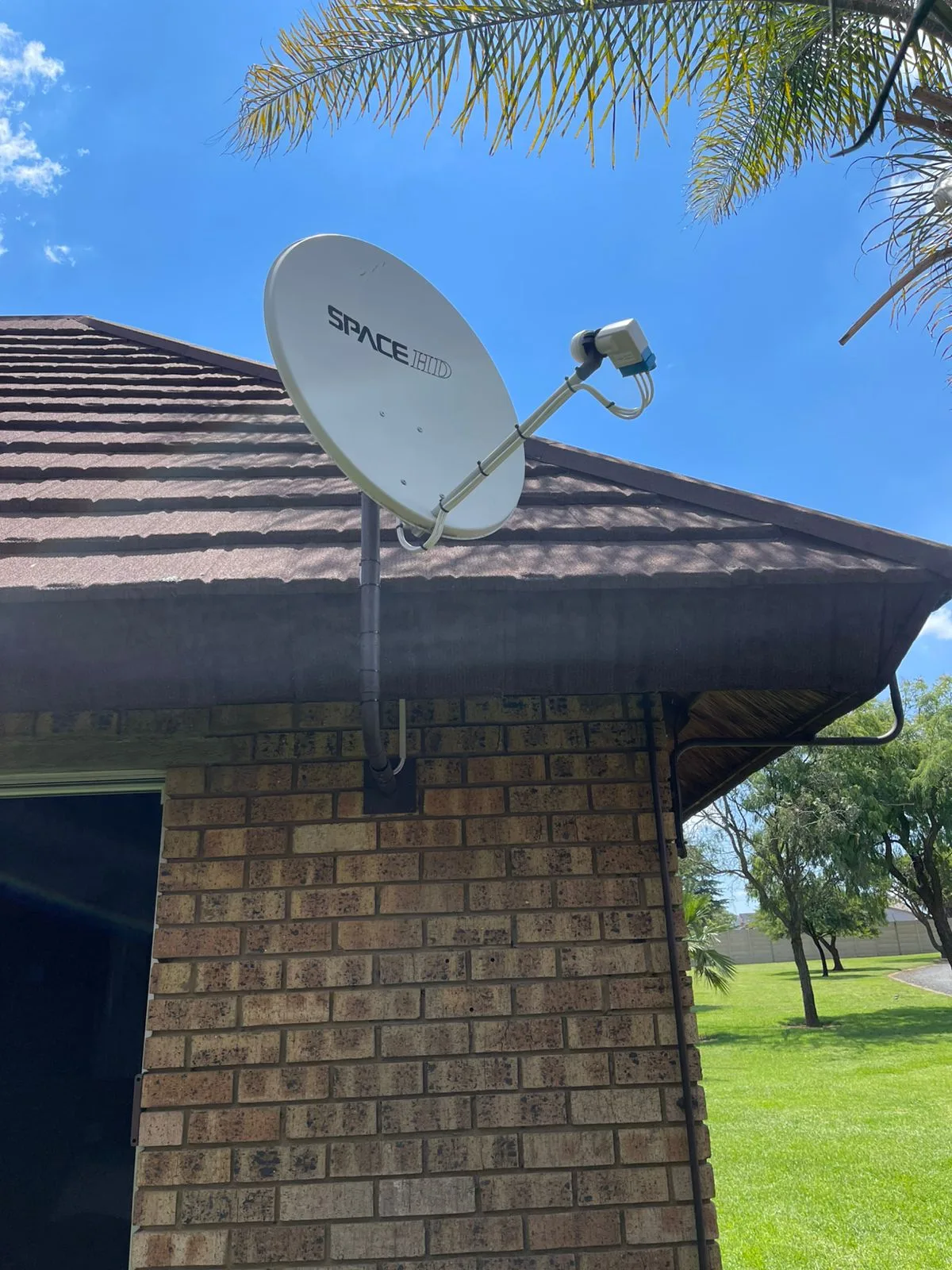
A weak or misaligned satellite signal can also interfere with the decoder's overall performance, which in some cases affects the Catch Up interface responsiveness. This is why correct dstv installation of the dish is a prerequisite even for internet-based features.
Step-by-Step DStv Catch Up Setup on the Explora Decoder
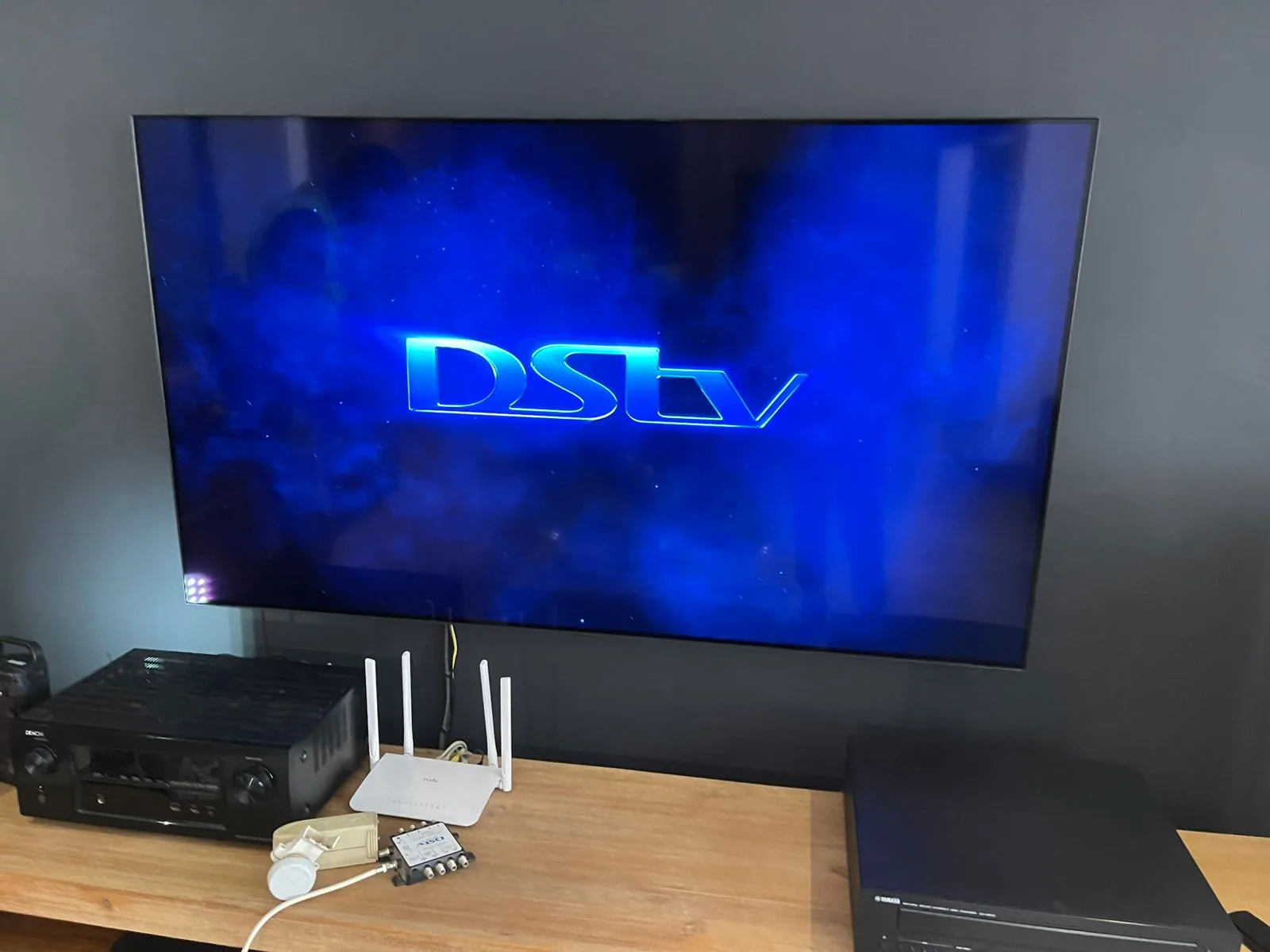
The DStv Catch Up setup on an Explora decoder begins with connecting the unit to your home internet. Use a LAN cable from your router to the decoder's Ethernet port for the most reliable connection.
Once connected, navigate to Settings on the decoder menu, then select Network Settings, and confirm that the internet status shows as connected. After network confirmation, Catch Up content should appear automatically in the Catch Up section of the decoder's home menu.
- Connect the decoder to your router via Ethernet or configure Wi-Fi under Network Settings.
- Confirm internet connectivity status in the decoder menu.
- Navigate to the Catch Up section from the main decoder menu.
- Browse by channel or category and select a title to stream or download.
- For downloads, select the download option and confirm storage space is available.
- Ensure the decoder remains powered and online to allow background downloads.
The decoder's internal hard drive stores downloaded Catch Up content. Remember that the Explora enforces a hard limit of 25 simultaneous Catch Up downloads, so manage your download queue accordingly.
DStv Catch Up Setup via the DStv App
The DStv app provides a second method for accessing Catch Up content without needing the physical decoder. App-based DStv Catch Up setup requires logging in with your MyDStv account credentials linked to your active subscription.
On Android and iOS devices, the DStv app supports both streaming and offline downloads of Catch Up content. This makes it possible to download episodes over Wi-Fi and watch them in areas with limited mobile data coverage.
- Download the DStv app from the Google Play Store or Apple App Store.
- Log in using your registered MyDStv account email and password.
- Select the Catch Up tab from the app's main navigation.
- Choose a title and select either Stream or Download.
- For offline downloads, ensure sufficient device storage is available before initiating.
If your account shows an error or Catch Up content is missing from the app, verify that your subscription is active and that your account is not flagged for payment issues. Our dstv technician team can assist with account-linked troubleshooting on site.
How a DStv Technician Assists with Catch Up Configuration
Many Catch Up setup failures trace back to underlying signal or network problems that require hands-on diagnosis. Our dstv technician team identifies and resolves these root causes rather than simply running through menu options.
Common technical issues we encounter include incorrect LNB wiring that causes intermittent signal drops, router firewall settings that block the decoder's outgoing connection, and Wi-Fi interference from neighbouring networks degrading throughput to the decoder.
Our accredited dstv installers carry diagnostic equipment to test signal quality, LNB performance, and cable integrity on every callout. We also verify network configuration at the router level to confirm the decoder can reach DStv's Catch Up servers without interruption.
When a new Explora is being set up, we include Catch Up configuration as part of the standard commissioning process. This ensures the decoder is connected to the internet, authenticated, and downloading content before we leave the premises.
DStv Installation Quality and Its Impact on Catch Up Performance
A high-quality dstv installation is the foundation on which Catch Up performance depends. Decoders that receive inconsistent satellite signals often experience decoder reboots or software lockups that interrupt Catch Up sessions and corrupt download queues.
Proper dish alignment to the IS20 satellite at 68.5 degrees East is critical. Signal quality should read above 60% and signal strength above 80% on the decoder's signal meter for stable operation, including Catch Up functionality.
Cable quality and run length also affect performance. Excessively long coaxial cable runs without a signal amplifier can degrade the signal to the point where the decoder struggles to maintain a stable EPG, let alone stream Catch Up content. Our dstv installers calculate run lengths and install amplifiers where necessary to maintain signal integrity throughout the installation.
Troubleshooting Common DStv Catch Up Setup Problems
If Catch Up is not displaying content after setup, the most common cause is a failed internet authentication on the decoder. Restart the decoder and router simultaneously, wait 90 seconds, then check the network status under decoder settings.
If the network status shows as connected but Catch Up content still does not load, perform a factory reset of the decoder's network settings only (not a full factory reset, which erases recordings). Re-enter the Wi-Fi credentials or reconnect the LAN cable and allow 5 to 10 minutes for the decoder to re-authenticate with the Catch Up servers.
- Catch Up not loading: Check internet connection status in decoder settings and restart both decoder and router.
- Catch Up greyed out: Verify that your DStv subscription is active and payments are up to date via the MyDStv portal.
- Downloads not completing: Confirm that the decoder's hard drive is not full and that the download limit of 25 shows has not been reached.
- App Catch Up errors: Log out of the DStv app, clear app cache, and log back in with your MyDStv credentials.
- Missing channels in Catch Up: Not all channels offer Catch Up content; confirm the specific channel supports it before troubleshooting further.
- Slow buffering: Test internet speed at the decoder location and consider upgrading to a wired LAN connection for improved throughput.
If the above steps do not resolve the issue, the problem may be hardware-related, such as a failing hard drive, a corrupted decoder firmware update, or a LNB fault causing intermittent signal drops. Contact our dstv technician team on 077 454 4032 for an on-site diagnostic.
DStv Catch Up Setup for Multi-Room and DStv Explora Ultra Systems
Multi-room DStv Catch Up setup requires each decoder in the system to have its own internet connection. A single Explora in a multi-room setup acts as the primary decoder, but Catch Up content downloaded to that decoder is not automatically shared to secondary viewing points.
For homes using the Explora Ultra or a Wireless Xtraview configuration, each decoder should be connected to the home network individually to access Catch Up independently. Our dstv installers configure multi-room systems with this in mind, running network cabling or optimising Wi-Fi coverage to reach each decoder position.
In larger homes, Wi-Fi signal attenuation through walls and floors is a frequent cause of poor Catch Up performance on secondary decoders. We recommend placing a Wi-Fi extender or access point within 5 metres of each secondary decoder if a wired LAN connection is not feasible.
Three simple steps to set up DSTV Catch Up, visualized in this infographic.
Our DStv Installers Serve These Gauteng Areas
We provide dstv installation and Catch Up configuration services across 28 Gauteng suburbs, with same-day availability on most callouts. Our technicians carry all necessary equipment to complete a full Catch Up setup in a single visit.
We currently operate in areas including Fourways, Roodepoort, and Centurion, among many other Gauteng suburbs. Each visit includes signal alignment, network configuration, and Catch Up commissioning as standard.
To book a same-day appointment, call us on 077 454 4032. Our dstv technician team is available Monday to Saturday and confirms availability before dispatch.
Conclusion
A successful DStv Catch Up setup depends on three interconnected factors: a properly aligned satellite dish, a stable internet connection at the decoder, and an active authenticated MyDStv account. Skipping any one of these components results in the common Catch Up errors that lead customers to call us for assistance.
Whether you need a full dstv installation from scratch or simply need an existing decoder reconfigured for Catch Up, our accredited dstv installers at DSTV Pro Installers are available across Gauteng. Call us on 077 454 4032 to arrange a same-day visit and get your DStv Catch Up setup working reliably.
Frequently Asked Questions
How do I set up DStv Catch Up on my Explora decoder?
Connect your Explora to the internet via a LAN cable or Wi-Fi under the decoder's Network Settings menu. Once the connection is confirmed, navigate to the Catch Up section in the decoder's main menu and the content library will populate automatically. If Catch Up does not appear, restart both the decoder and router, then wait 10 minutes for the system to re-authenticate.
Why is DStv Catch Up not working after setup?
The most common reason DStv Catch Up fails after setup is a broken internet connection or an account authentication error. Check that your DStv subscription is active, that the decoder shows a connected network status, and that your router is assigning an IP address to the decoder. If the problem persists, contact our dstv technician team for an on-site diagnostic.
Can I set up DStv Catch Up without connecting to the internet?
No, DStv Catch Up setup requires an active internet connection because all Catch Up content is streamed from or downloaded via MultiChoice's servers. Without internet connectivity, the Catch Up menu on your decoder will be inaccessible or will display an error. A wired LAN connection is the most reliable method for maintaining a permanent Catch Up-ready setup.
Is DStv Catch Up setup the same on the DStv app as on the decoder?
The DStv Catch Up setup process on the app is simpler: log in with your MyDStv credentials and select content from the Catch Up tab. The app supports both streaming and offline downloads, making it a useful backup when the decoder is in use. Both methods use the same account and subscription, so content availability is identical across the app and decoder.
How many shows can I download with DStv Catch Up in 2026?
In 2026, the DStv Explora still enforces a maximum of 25 simultaneous Catch Up downloads to the decoder's hard drive. Once you reach this limit, you must delete existing downloaded titles before new downloads can begin. Managing your download queue regularly prevents storage conflicts during your dstv catch up setup and ongoing use.
Does DStv Catch Up setup require a specific subscription package?
DStv Catch Up is available to all subscribers regardless of package tier, meaning you do not need a premium add-on to access the feature. However, the specific channels and titles available in Catch Up vary by package, as each channel's Catch Up rights depend on the broadcasting agreements MultiChoice holds. Your dstv installation package determines which channels you receive, which in turn determines your Catch Up library.
How long does a professional DStv Catch Up setup take?
A complete professional dstv catch up setup, including dish alignment verification, decoder internet configuration, and Catch Up commissioning, typically takes between 45 minutes and 90 minutes depending on the home's existing wiring condition. Our dstv installers complete the full process in a single visit and test Catch Up functionality before leaving the property. Call 077 454 4032 to book a same-day appointment in Gauteng.
Keep reading
In case you missed it
Planning a job? See DSTV Explora installation. Or browse our Garsfontein DSTV setup and accredited Faerie Glen DSTV installers pages.
More to read: our guide: curved tv wall mounting.